Google Ads Conversions Not Matching GA4? 9 Reasons and How to Fix Them
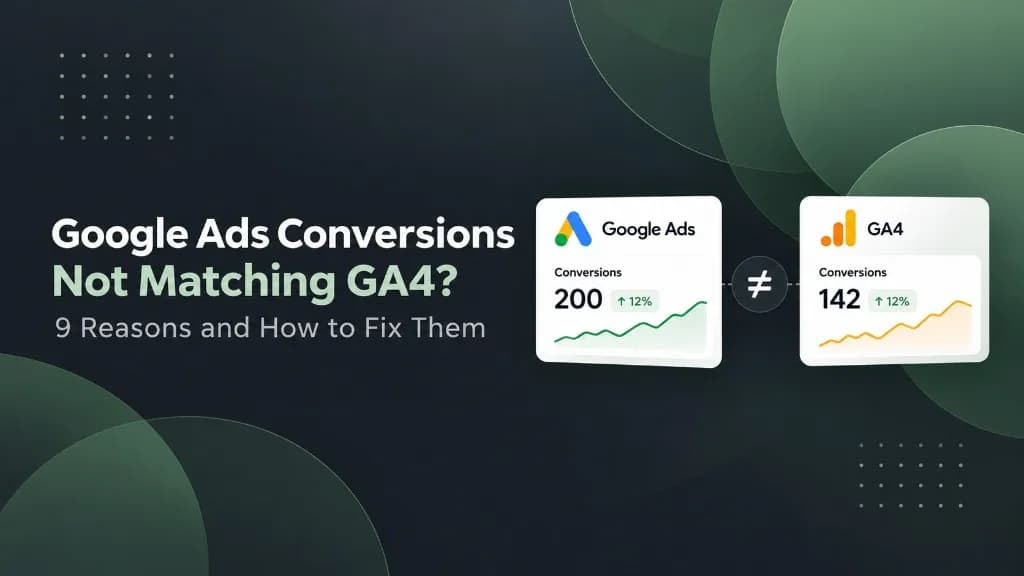
You open Google Ads and see 180 conversions. You open GA4 and see 120. Which number is wrong?
Possibly neither. The two reports may be counting different actions, using different dates, assigning credit differently, or applying different eligibility rules. Before changing a tracking tag, verify that you are comparing equivalent metrics.
The most useful question is not "Why don't the totals match?" It is: "At which stage do the numbers begin to diverge?" This guide shows you how to answer that question systematically.
On this page
Why your Google Ads and GA4 conversion numbers disagree
First: make sure you're comparing the same metric
Google Analytics 4 distinguishes key events (important actions across your website or app) from Google Ads conversions used for advertising measurement and optimization. Google Ads conversions can also be viewed in GA4's Advertising workspace. A GA4 standard report showing key events is not necessarily an apples-to-apples comparison with Google Ads' Conversions column.
Start with the same date range, account/property, conversion action, platform (web versus app), and time zone. In Google Ads, segment by conversion action. Compare the Conversions, All conv., and conversions-by-conversion-time columns as appropriate. In GA4, decide whether you are inspecting key events in standard reports or advertising conversions in the Advertising section.
Quick diagnosis table
| What you see | Likely explanation | First check |
|---|---|---|
| Google Ads daily conversions appear a day earlier | Click-date versus conversion-date reporting | Compare conversion-time columns |
| Google Ads Conversions is lower than All conv. | Primary/secondary action eligibility or additional conversion types | Segment by conversion action |
| GA4 key events exceed Google Ads conversions | Different channel scope, counting, or attribution | Compare like-for-like action and channel |
| Gap appears after a website redesign | Lost GCLID, consent changes, broken tags or redirects | Test a real landing-page journey |
| Difference is greatest for recent days | Conversion lag or reporting processing | Recheck a matured date range |
| Difference is mostly near midnight | Different account/property time zones | Compare time zone settings |
1. Click date versus conversion date
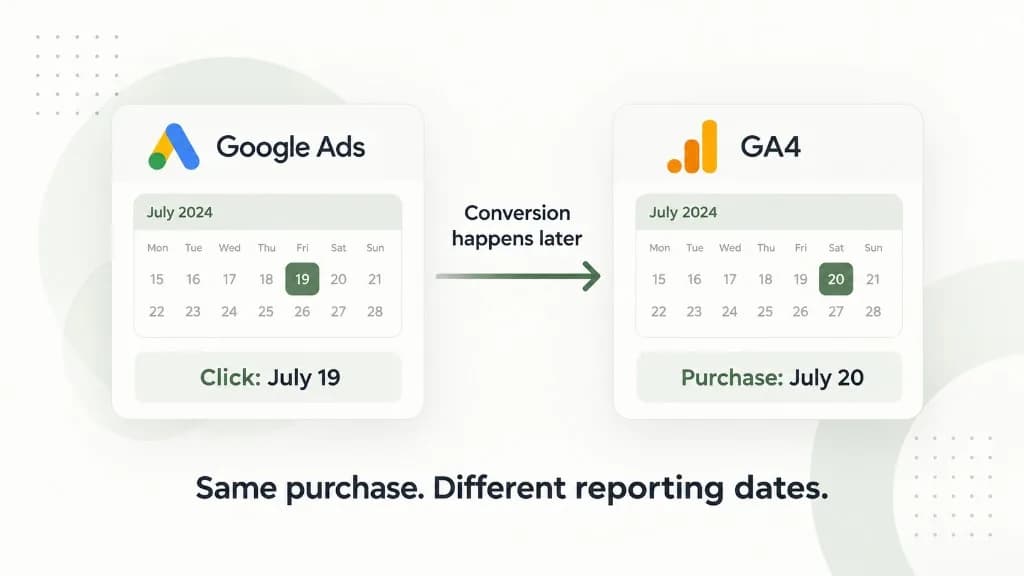
This is often the fastest discrepancy to diagnose. A visitor clicks an ad on July 19 and buys on July 20. Standard Google Ads conversion reporting typically credits the ad interaction date, while GA4 event reporting records the action on July 20. That single purchase can appear on different days without being duplicated.
How to check: In Google Ads, add the Conversions (by conv. time) or All conv. (by conv. time) column where available. Compare it with the GA4 event date. Use a longer, fully matured date range rather than judging a one-day snapshot.
2. You're comparing key events with Google Ads conversions
In GA4, a purchase event can be marked as a key event and counted in reports covering multiple channels. In Google Ads, the Conversions column focuses on eligible conversion actions and their ad attribution. These aren't automatically the same population.
How to check: Identify the exact GA4 event name and Google Ads conversion action. If the action was created from a GA4 event, inspect it in GA4's Advertising conversion reports where supported. Avoid comparing a sitewide purchase key-event total with an ads-attributed conversion total.
3. Primary versus secondary conversion actions
Google Ads' Conversions column and All conv. column serve different purposes. Secondary actions may appear in All conv. but not in the primary Conversions metric, depending on campaign settings and goal configuration. Additional conversion types can also affect All conv.
How to check: Open Goals > Conversions > Summary in Google Ads. Review the action optimization setting and the campaign's conversion goals. Segment reporting by conversion action to spot whether lead submissions, purchases, or micro-conversions are mixed together. Don't switch an action to Primary just to make reports match: that may affect bidding.
4. Different counting settings: One versus Every
Imagine someone clicks an ad and submits two separate lead forms. GA4 might record two key-event occurrences. A Google Ads action configured to count One can count only one conversion for the relevant ad interaction; Every can count multiple qualifying conversions.
How to check: Inspect the Count setting on the conversion action. For sales, Every is often appropriate; for leads, One may be appropriate, depending on what a repeat submission means to the business. For certain GA4-sourced conversions, settings may need to be managed in Analytics rather than Google Ads.
5. Attribution settings and channel eligibility
Attribution decides which interactions receive credit. GA4 standard acquisition reports and GA4 Advertising reports do not necessarily answer the same question. GA4-sourced Google Ads conversions can also differ depending on whether eligible channels are set to Google paid channels or paid and organic channels. Models, reporting scope, and attribution windows matter.
How to check: Review attribution settings in GA4 and the relevant Google Ads conversion action. Confirm whether you are comparing an event total, an attributed conversion total, or a channel/campaign breakdown. A conversion credited to organic search in one report can still be connected to an earlier paid interaction in another attribution view.
6. Different conversion windows
A customer clicks an ad and buys 25 days later. One configuration may still attribute the sale while another may fall outside its eligible lookback window. This is especially visible for expensive products or long B2B sales cycles.
How to check: Compare the click-through conversion window for the exact action and relevant attribution settings. Document changes and their effective dates. Do not change windows solely to force numerical agreement; use a window aligned with the buying cycle.
7. Conversion lag and data processing
Today's conversions are rarely a complete picture of today's clicks. Customers may convert days later, and reporting pipelines can take time to process data. Recent periods can therefore look inconsistent even when implementation is healthy.
How to check: Compare a historical period that has had time to mature, then check the latest 24–72 hours separately. Look for patterns across multiple days instead of drawing conclusions from today's partial data. Google notes that some conversion reporting may lag, particularly with non-last-click attribution.
8. Lost GCLID, broken tags, redirects, or consent behavior
A tracking problem becomes more likely when the gap begins suddenly after a website, checkout, cookie banner, or tag-manager update. If a redirect strips the GCLID or landing-page parameters, Google Ads may struggle to attribute an otherwise recorded GA4 event back to the ad. Consent choices and tag firing conditions can also change what each platform observes or models.
How to check: Click a test URL with a harmless sample query parameter and verify it survives redirects; test GCLID handling carefully without fabricating real ad attribution. Use Tag Assistant and GA4 DebugView to verify the expected event fires once with required parameters. Inspect consent state, cross-domain checkout behavior, and whether the purchase event fires after successful payment rather than merely on page load. For a real Ads attribution test, use a legitimate ad-click journey.
9. Duplicate or inconsistent conversion implementations
Some sites send purchases to GA4 through GTM and also through a hardcoded tag or server-side implementation. Others use both a native Google Ads conversion tag and a GA4-imported conversion for the same business action. Those are not inherently wrong, but counting both as primary conversions can inflate reports or bidding signals. Missing or reused transaction IDs can also complicate purchase deduplication.
How to check: Inventory every conversion action and every firing path. Record source, event name, transaction ID, trigger, and optimization status. For purchases, verify unique transaction IDs and test one successful order end to end. Keep a single clearly defined primary purchase goal for each intended optimization strategy unless you have a deliberate reason otherwise.
A 15-minute troubleshooting workflow
- Write down the two exact numbers, dates, time zones, and report names. Screenshot the column headers.
- Confirm whether GA4 shows key events or Google Ads conversions in Advertising reports.
- In Google Ads, segment by conversion action; compare Conversions and All conv.
- Add conversion-time columns and test whether the daily gap shrinks.
- Check Primary/Secondary, Count, conversion windows, and attribution channel settings.
- Compare a mature historical range against the most recent days.
- If the discrepancy started suddenly, test redirects, GCLID preservation, consent, tags, and checkout events.
- Reconcile a sample of real orders or leads against backend records using transaction IDs where available.
- Document the reason for the difference and the metric your team will use going forward.
Worked example: 180 versus 120
Suppose Google Ads reports 180 Conversions and a GA4 standard report shows 120 purchase key events. Do not immediately call 60 conversions "missing." First, segment Google Ads by conversion action. You might discover that 40 of the 180 are qualified leads, not purchases. Next, compare purchase conversions by conversion time, which may shift additional purchases into neighboring dates. Finally, check whether GA4's 120 covers all channels or a specific filtered channel. Only after aligning these definitions does the remaining gap become meaningful.
These numbers are illustrative, not a benchmark or an expected reconciliation result.
Which number should you trust?
For Google Ads bidding and campaign optimization, start with the properly configured primary conversion actions in Google Ads, then audit their quality against real business outcomes. For sitewide behavior and journeys, use GA4 events and key events. For actual paid orders and revenue, your validated backend or order database is the operational source of truth, while attribution tools explain marketing credit rather than replacing transaction records.
A good marketing dashboard should not hide these differences. It should label each metric by source and definition, show the appropriate reporting date, and avoid combining unlike conversion totals in a single KPI without explanation.
FAQ
Should Google Ads and GA4 conversions match exactly?
No. They can align closely when the same conversion definitions, channel eligibility, counting, timing, and attribution settings are used, but a perfect match is not guaranteed.
Why does Google Ads show more conversions than GA4?
Check conversion actions included in Google Ads, All conv. versus Conversions, counting settings, conversion-date attribution, and whether the GA4 report is filtered to the same events and channels. If the gap appeared suddenly, investigate tracking implementation.
Why does GA4 show more purchases than Google Ads?
GA4 may count purchases from all channels, while Google Ads counts eligible ad-attributed conversions. Attribution settings, consent, conversion windows, and GCLID preservation can also contribute.
Does linking GA4 to Google Ads make the numbers identical?
No. Linking makes data sharing and conversion setup possible; it does not automatically make every report use the same metric definition, reporting date, or attribution scope.
Final takeaway
When Google Ads and GA4 disagree, begin with definitions, dates, and attribution—not a tracking rebuild. Then inspect conversion action settings, reporting lag, and the actual event implementation. The goal is not to force two tools to show the same number; it is to understand what each number represents and make decisions from the right one.
If your team reports on both platforms, a well-structured Data Studio dashboard can help keep Google Ads performance and GA4 behavior visible without confusing their conversion definitions. Explore OptimCamp's Google Ads Data Studio Template
Sources and further reading
- Google Analytics Help — Conversions vs. key events: https://support.google.com/analytics/answer/13965727?hl=en
- Google Ads Help — Create conversions from Google Analytics events: https://support.google.com/google-ads/answer/2375435?hl=en
- Google Ads Help — Fix missing data and discrepancies: https://support.google.com/google-ads/answer/2404039?hl=en
- Google Ads Help — Conversion counting options: https://support.google.com/google-ads/answer/3438531?hl=en
- Google Analytics Help — Attribution settings: https://support.google.com/analytics/answer/10597962?hl=en
- Google Ads Help — Data discrepancies and troubleshooting: https://support.google.com/google-ads/answer/7457111?hl=en