GA4 Purchase Events Are Firing, but Revenue Is Missing: What to Check
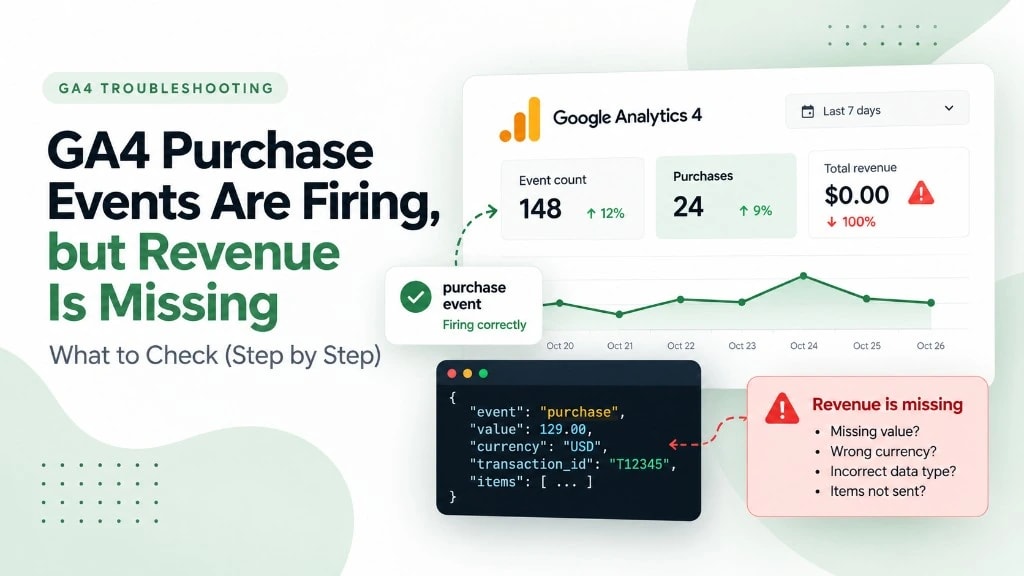
GA4 shows purchase events, but your revenue is zero—or much lower than your store's sales. That usually means the event reached Analytics without usable ecommerce values, the values changed along the way, or you're comparing different reports. Here's how to isolate the problem without guessing.
On this page
First, check which revenue metric you're looking at
Don't compare the purchase event count with total revenue and assume they should move together. Event count measures occurrences. Revenue depends on the ecommerce parameters and the metric you're viewing. Compare Purchases and Purchase revenue for the same property, date range, and reporting context. Allow for normal reporting delay before diagnosing a brand-new transaction.
A quick diagnosis: find where the value disappears
Use a safe test transaction you can identify (prefer a test environment or payment sandbox). Then check that same transaction at each step, from the website to the GA4 request. Do not place repeated live orders just to test tracking. This is a quick initial diagnostic workflow, not a promise that every issue can be fixed in five minutes.
Where did the purchase value disappear?
Trace one test order through the complete GA4 collection path.
- 01
Website Data Layer
Value & Currency
- 02
GTM Purchase Tag
Parameter Mapping
- 03
GA4 Network Request
Actual Payload
- 04
GA4 Reports
Processed Revenue
Check the first step where the expected value is missing or incorrect.
- Inspect the ecommerce data layer. In GTM Preview, find the purchase event and confirm the order value and currency are present at the moment the tag fires. A value present on the page later is not proof it was available when the tag ran.
- Inspect the GA4 tag. Confirm the purchase event sends the correct variables, not undefined values, a stale ecommerce object, or a hardcoded zero.
- Inspect the outgoing request. In browser DevTools > Network, filter for GA4 collection requests (for example,
collect). Check the actual purchase request and its parameters. GTM Preview alone cannot prove what the browser sent. - Check DebugView and reports. DebugView can help validate that an event and its parameters arrive, but it is not a guarantee of immediate inclusion in standard revenue reports. Recheck after processing time and confirm you're using the right property and date range.
What a valid purchase payload should contain
For a standard GA4 ecommerce implementation, send a numeric value, a valid three-letter ISO currency code, a unique transaction_id, and an items array with meaningful item details. Use the correct total for your business and follow GA4's ecommerce specification.
dataLayer.push({
  ecommerce: null
});

dataLayer.push({
  event: "purchase",
  ecommerce: {
    transaction_id: "ORDER-1042",
    value: 129.00,
    currency: "USD",
    items: [{
      item_id: "SKU-01",
      item_name: "Example product",
      price: 129.00,
      quantity: 1
    }]
  }
});
Important: This is a GTM-style data layer example, not a GA4 network request. Your GTM tag must map these values to GA4 event parameters. A data layer push by itself does not send a GA4 purchase event.
For GA4 purchase events, value should equal the sum of item price × quantity, excluding shipping and tax, as specified in GA4 ecommerce guidance. Shipping and tax can be sent separately when relevant. Do not use a localized formatted string such as "$129.00" as the numeric value.
The most common causes—and the fastest checks
| Symptom | What to check | Next action |
|---|---|---|
| Purchases increase, revenue stays at zero | value and currency on the outgoing purchase request | Fix the GTM parameter mapping or ecommerce payload |
| Revenue differs from store totals | Tax, shipping, refunds, currency and the definition of revenue | Compare equivalent metrics and transactions |
| Some orders have revenue, others don't | Payment method, checkout route, race conditions and missing variables | Test each checkout completion path |
| GTM shows correct values, GA4 doesn't | GA4 request payload, event modifications and destination property | Inspect the actual request and configuration |
| Revenue appears late | Reporting latency and report date range | Wait for processing and compare again |
If your website uses multiple currencies, send the transaction currency for each purchase. Don't confuse a store's displayed currency with the currency transmitted to GA4. Reused transaction_id values can cause purchase deduplication; ensure each real transaction has its own ID.
How to verify the fix
- Trigger one identifiable test transaction through the affected checkout path.
- Confirm
purchase,transaction_id, numericvalue,currency, anditemsin the outgoing GA4 request. - Check the event in DebugView if debug mode is enabled.
- After standard report processing, compare the corresponding purchase and revenue figures with your backend using the same scope and revenue definition.
Bottom line: Start with the actual GA4 request, not the dashboard. Once you know whether the value was missing before GTM, inside GTM, or after transmission, the fix becomes much more specific.